
Payment Settings for Paid Events
There are online and offline payment collecting options for paid events and you can activate both but setting at least one is a must.
Note: If you prefer the online option, you can also collect donations from the participants.
Online Payment
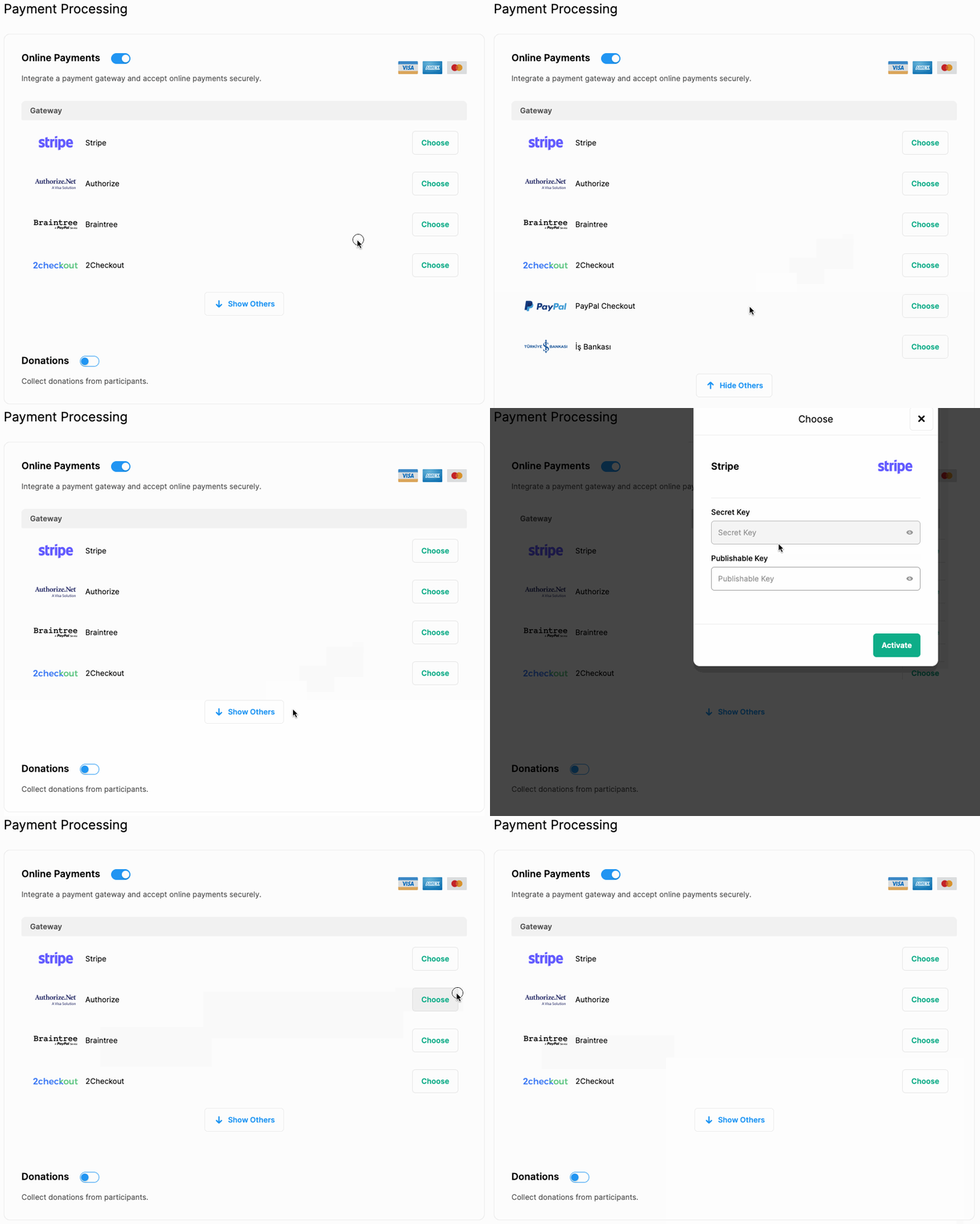
MeetingHand has integrations with major payment gateways such as Stripe, Authorize, Braintree, 2checkout, and PayPal.
Follow the steps below to complete your online payment settings;
- Switch on ‘Online Payments’
- Choose one of the provided gateways that you already have an account,
- Add & save the required account credentials, (Click here to learn about how to setup the payment gateways)
ⓘ Click here to learn about payment gateways integrations
Donation Collection
If you activate online payments, you can also collect donations from the participants.
Follow the steps below to collect donations;
- Switch on ‘Donations’,
- Set the minimum and maximum donation amounts,
- Add a discount collection message for participants.
Offline Payment Settings:
If you wish to collect your payments by using any method other than online follow the steps below;
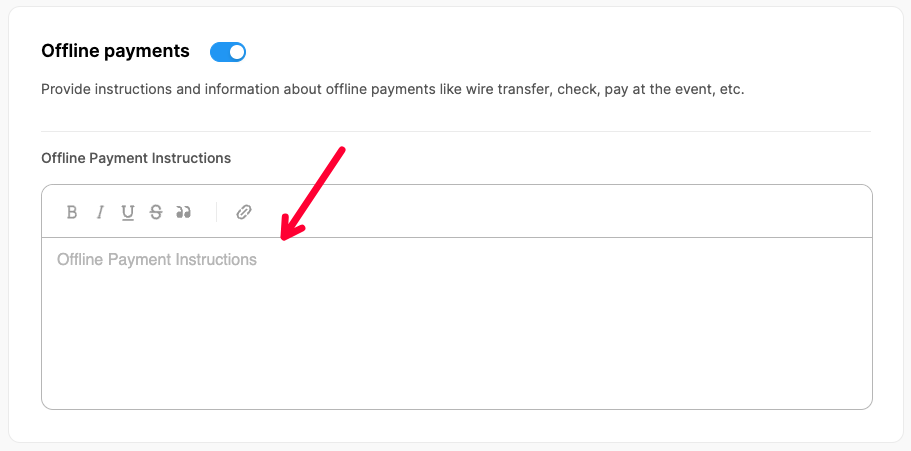
- Switch on ‘Offline Payments’,
- Provide instructions and information about the payments by using the text edit field. (The payment instructions will be displayed on participant account pages.)
- Click the ‘Finish Setup’ button.
Comments
0 comments
Please sign in to leave a comment.