
If you have created any ‘webinar’ type virtual session, you can also add your speaker details to it and display it with speaker details in participant accounts.
Please note that you should have added your speakers first, by clicking the ‘Event Home’ menu on the left side and then ‘Speaker Management’ under it before you start adding speakers to your sessions.
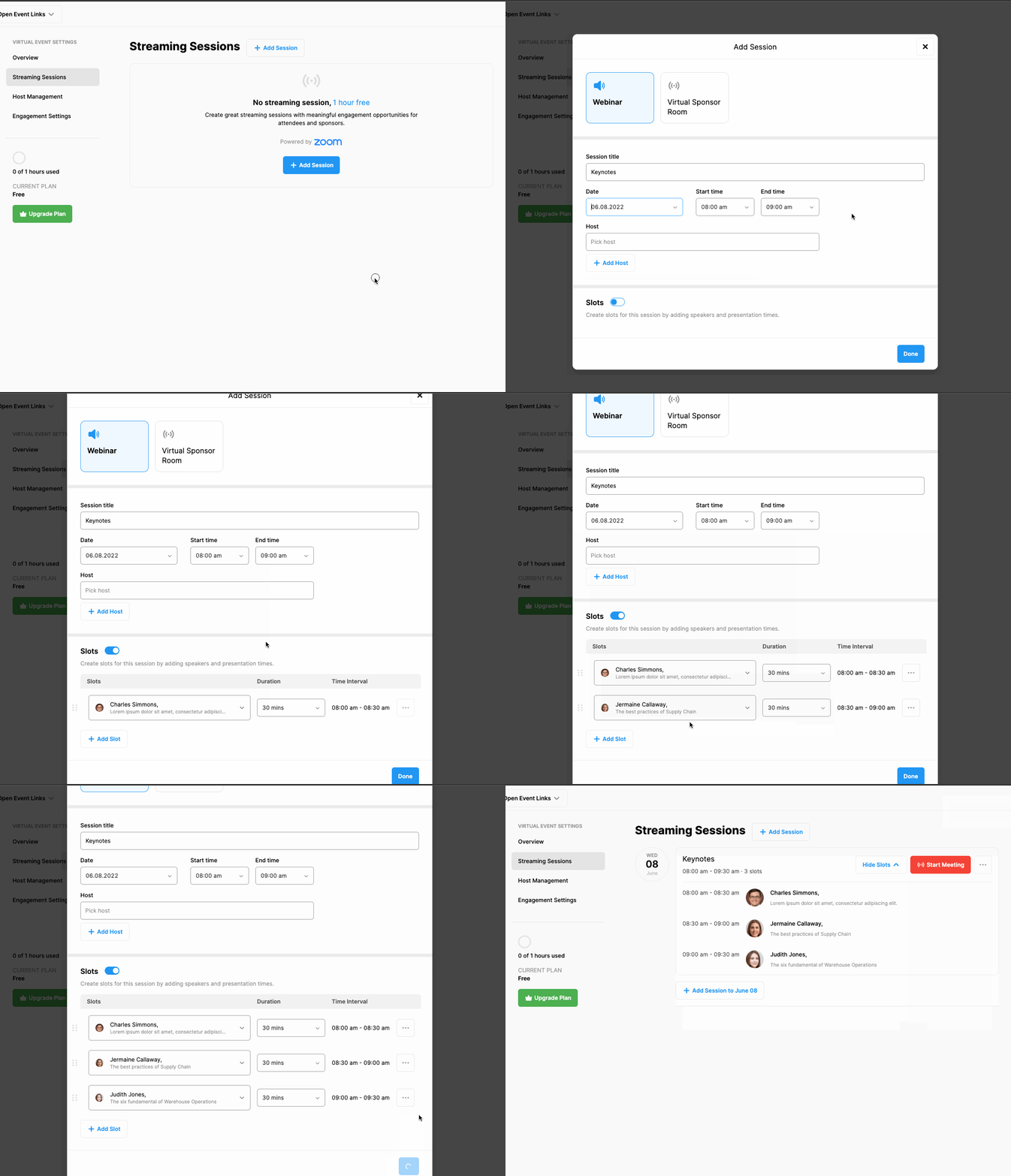
To add your speakers to the webinar type virtual sessions you created, follow the steps below;
Choose ‘Virtual Event’ from the left side menu,
Choose the ‘Streaming Sessions’ option under the ‘VIRTUAL EVENT SETTINGS’ title,
Click the ‘Add Session’ button located at top of the page to create a new session and click the ‘Webinar’ option or, click the 3 dots next to an existing webinar type session you wanted to add your speakers,
Choose the ‘Edit’ option in the menu,
Switch on the ‘Slots’ title,
Click ‘Pick a speaker’ field,
Select the speaker you wanted to add,
Adjust the presenting time,
If required, click ‘Add Slot’ to add more speakers and click ‘Done’ to save.
Comments
0 comments
Please sign in to leave a comment.