
MeetingHand allows you to create ‘Sponsorship Categories’ and add your ‘Sponsors’ under the sponsorship categories you created, with engagement details. Then you can publish your sponsors on your event web page automatically or add them easily to the ‘Virtual Sponsor Rooms’ you created; in case your event has a virtual component.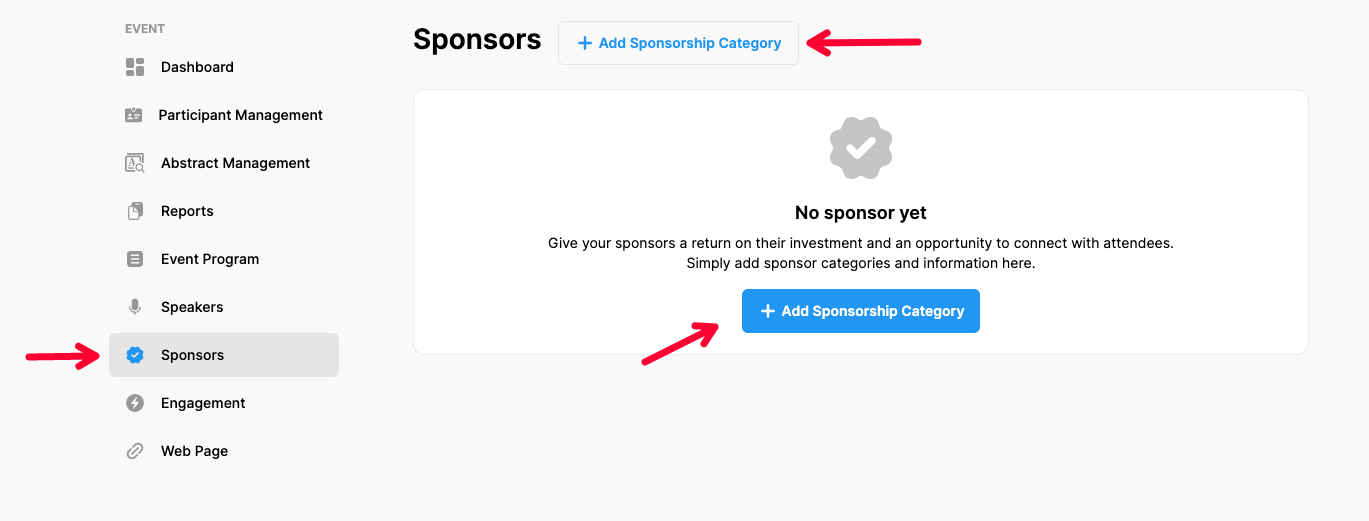
To create ‘Sponsorship Categories’ and ‘Add Your Sponsors’, apply the steps below.
Choose ‘Event Home’ from the left side menu,
Choose ‘Sponsors’ option under the ‘EVENT’ title,
Click the ‘Add Sponsorship Category’ button,
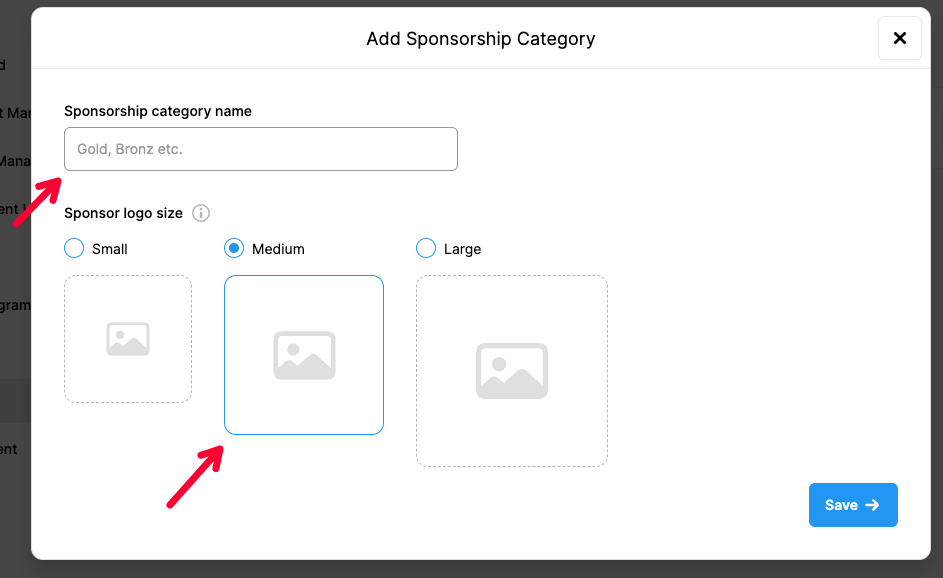
Name your sponsorship category and choose a logo size for this category,
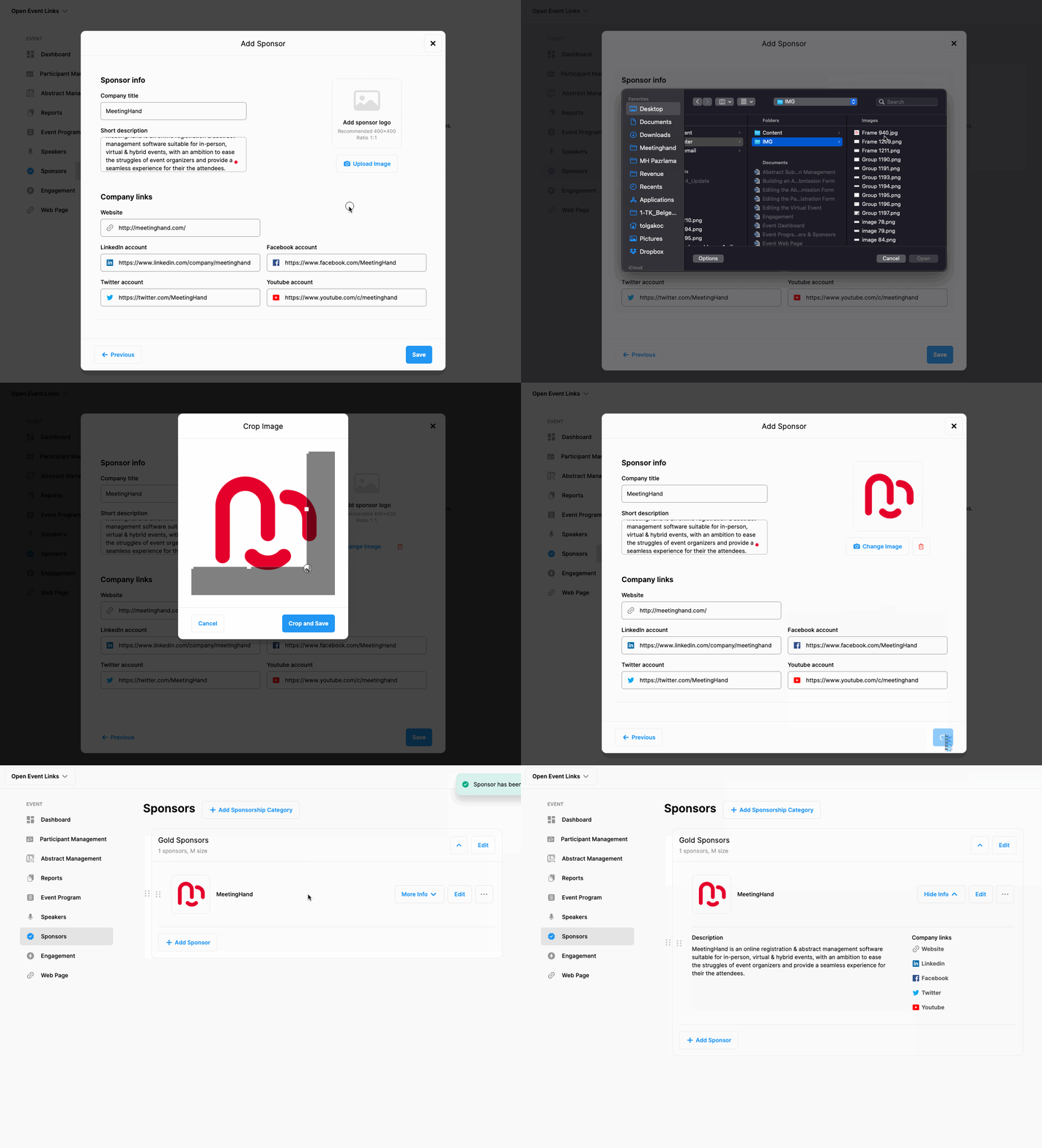
When the category is added, click the arrowhead on the right side,
Click the ‘Add Sponsor’ button,
Fill in the sponsor details and logo (400x400 pixel or 1:1 ratio),
Click ‘Save’
Repeat the steps above to add more sponsors.
Comments
0 comments
Please sign in to leave a comment.